Creating Housekeeping Sections
The Housekeeping Sections option allows users to create records for different sections of the housekeeping department in the property.
Breakpoint: 75020 - Housekeeping Sections (Housekeeping - Housekeeping)
Perform the following steps to create records for housekeeping sections:
Navigate to Settings à Housekeeping Setup à Housekeeping Sections.
Click Create Section Code. The Create Section Code screen appears:
Refer to the following table and fill in the fields:
|
Field |
Description |
|---|---|
|
Section Code |
A unique code to identify the housekeeping section. Up to 15 alphanumeric characters, special characters, or numbers are supported. |
|
Section Name |
A name for the housekeeping section in the property. Up to 50 alphanumeric characters are supported. |
|
Building Name |
Select the building where the housekeeping section is located. The records created in the Building Codes (Setup à Room à Building Codes) screen are listed as options. |
|
List Order |
The position in which the housekeeping section code must appear in the grid. By default, the system automatically generates a value based on the value of the previously created list item. Values up to 999 are supported. |
|
Active |
When enabled, it indicates that the housekeeping section code is active. |
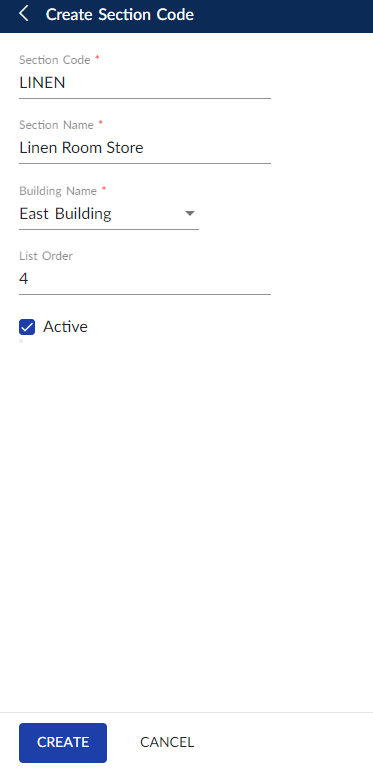
Click Create. The housekeeping section is created and displayed in the grid.
Users can also perform the following actions in the Housekeeping Sections screen:
-
Modify the details of the housekeeping section using the Edit icon.
-
Delete the housekeeping section using the Delete icon.
-
Drag the housekeeping section record to change positions within the grid using the Drag icon. The list order number is automatically updated after the change in positions.
-
Copy the housekeeping section record using the Copy icon. When copied, all the details of the existing section, except the section code, is copied to the new housekeeping section record.
-
Search for the housekeeping section using the code or name.
-
Print the housekeeping section details using the Print icon.